
Reference
The AerTwin window
The layout of the AerTwin window — the 3D view, the toolbar along the bottom, and the panels that open beside the view.
When you open a structure, the window fills with the 3D view. The toolbar runs along the bottom, and panels open over the edges of the view when you need them.
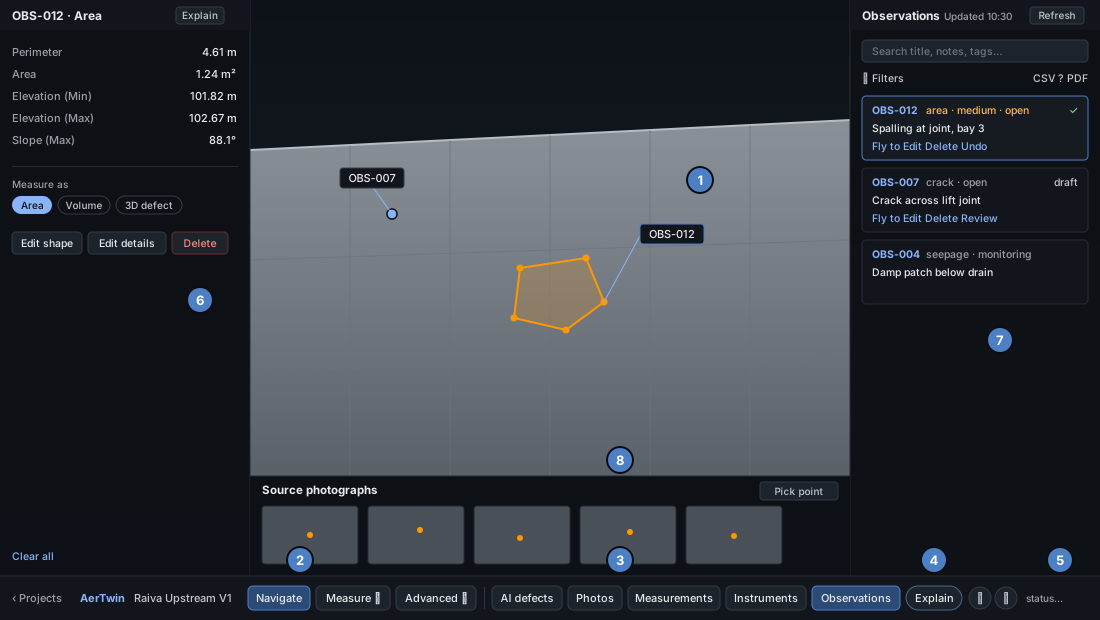
| No. | Area | What it is for |
|---|---|---|
| 1 | 3D view | The live picture of the model. Pins, labels and outlines are drawn over it. Drag to orbit, right-drag to pan, turn the wheel to zoom. |
| 2 | Toolbar — tools | Navigate, Measure and Advanced. The lit button sets what your next click on the model does. |
| 3 | Toolbar — panels | AI defects, Photos, Measurements, Instruments and Observations. A lit button means its panel is open. |
| 4 | Toolbar — help | Explain (what anything on the screen means), the flag ⚑ (report a problem) and the bell ◉ (team activity). |
| 5 | Status line | The state of the connection, and a short message after each action — for example “measurement cancelled”. |
| 6 | Measurement panel | The figures for the selected measurement, and the controls to measure, shape, save or delete it. Opens on the left. |
| 7 | Right-hand panel | Observations, AI defects or Instruments. The right side holds one of these panels at a time: opening one closes the other. |
| 8 | Source photographs | The calibrated photographs that show a point you pick. Opens along the bottom, above the toolbar. |
Windows that open over the view
Section titled “Windows that open over the view”| Window | Opens when | Closes with |
|---|---|---|
| Finding form — titled New observation, Save measurement, or Edit and the finding’s number | You record or edit a finding | Save, Cancel or Esc. Drag the form by its title bar; resize it from its lower-right corner |
| Photograph | You click a photograph in the strip | ✕ or Esc |
| Review panel | You start a review of AI proposals | Leave review |
| Report a problem | You click the flag ⚑ | Send report or Cancel |
| Are you still there? | Nothing has been touched for 2 minutes | Any mouse movement or key press |
Signs on the view
Section titled “Signs on the view”| Sign | Where | Meaning |
|---|---|---|
| Section plane on with Clear | Top centre | Part of the model is cut away. Clear puts it back whole |
| AI Review mode | Top centre | The AI defects panel is open and proposals are drawn on the model |
| Orange outline with points | On the structure | A measurement. Orange is the measurement colour |
| Pin with an OBS-… label | On the structure | A saved finding. The pin never moves; its label may move to stay readable |
Resize and collapse the panels
Section titled “Resize and collapse the panels”- Drag the inner edge of a side panel to make it wider or narrower.
- Click the arrow in a panel’s header (‹, › or ⌄) to collapse the panel to a thin bar. Click the arrow again, or the panel’s toolbar button, to restore it.
- Collapsing a panel keeps its content as it was. Clicking a lit toolbar button closes the panel.
AerTwin HelpQuestions: support@aer-intel.com